How do I get started with Latch?
1.
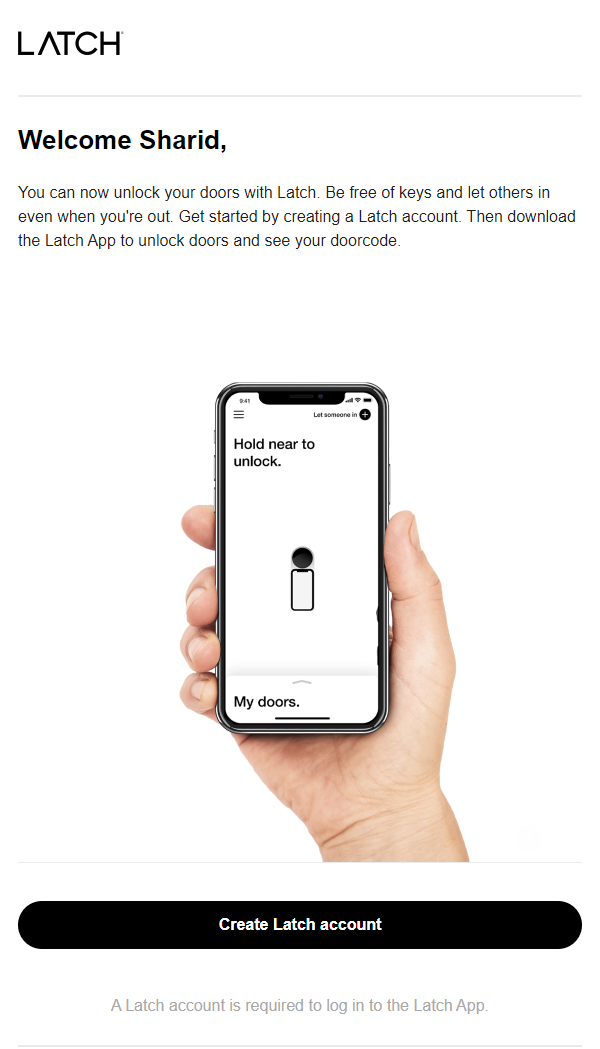
You will receive an email from Latch asking you to finish creating your account by creating a password:
2.
After you have set your password download the Latch App:
3.
Once you have downloaded & installed the app you can open it on your phone:
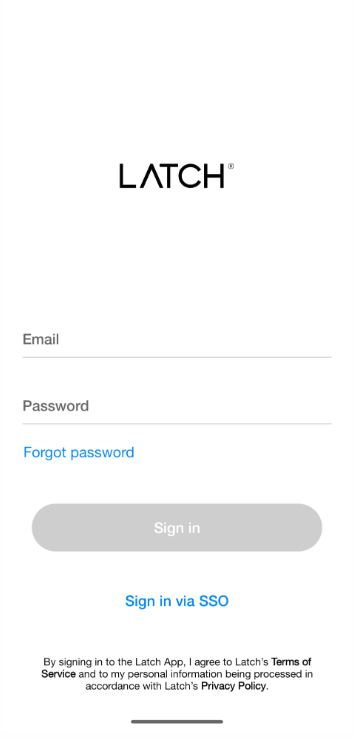
Use the email that you were sent the invite on and enter your password.
4.
Your Latch App is now set up!
How do I use the Latch App to open my door?
There are 4 ways to open your Latch door.
- Via the App.
- A physical key.
- RFID keycard.
- Personal Door code
The easiest way is to use the app. Not only is this simple it also keeps your Latch device updated with the correct firmware and lets you know what your battery percentage is.
Using the personal Door Code:
Please note that this door code is only for you and should not be shared. It never changes and is unique to your latch unit. Never share this with guests.
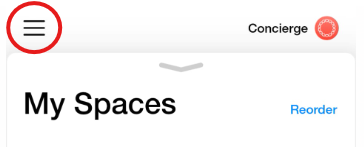
- Begin by selecting the hamburger menu on the upper left side.
- Select “My Doorcodes”
- Tap to reveal on the Latch device that you want the code for.
- Tap the face of the Latch device and it will light up with a keypad.
- Enter the code provided and the deadbolt will unlock.
Using a Key:
Simply use the key provided to you when taking ownership of your property or getting it from your landlord.
Using a Key Card:
Your property manager can provide you with a key card. While convenient, we still advise you to use the app once and a while to update your devices firmware and battery % reading. Sometimes the device will require you to have the latest firmware on your Latch device before allowing you to use the keycard.
Personal Door Code:
Using the App:
After logging in to the app you will see the following:
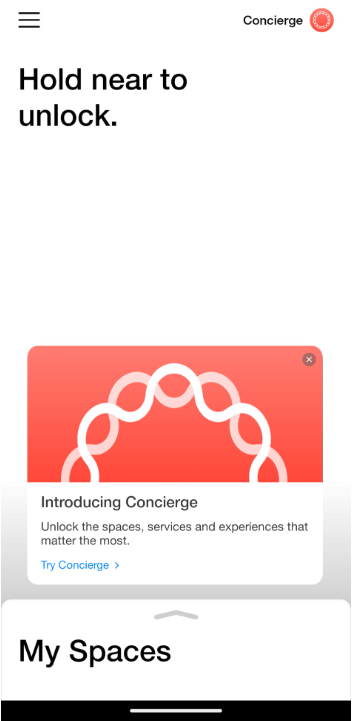
Select “My Spaces” and it will bring up all the Latch devices you currently have access to:
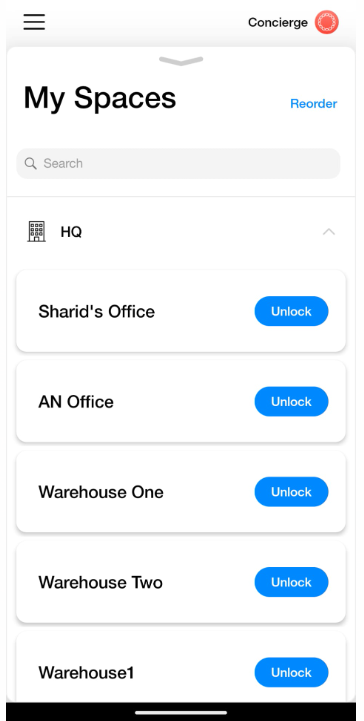
All you need to do next is hold your phone near the Latch device and it will unlock the door.
You can also manually open the door (while close) by selecting the “Unlock” button.
If your door does not open automatically select the hamburger menu on the upper right
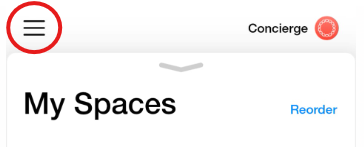
Go to “Settings” and select “Unlock Settings”
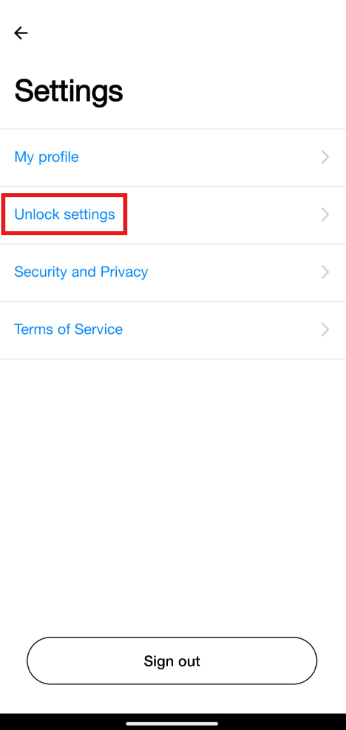
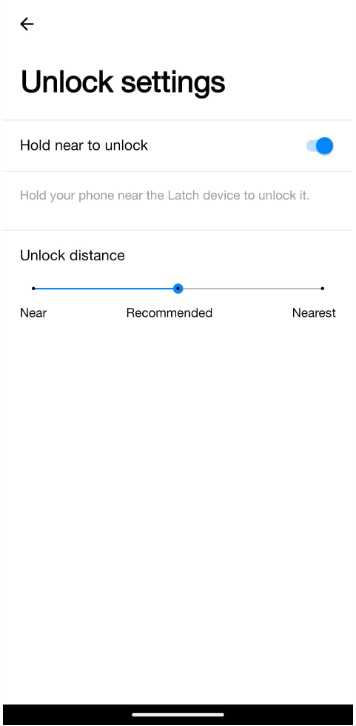
Make sure that the “Hold near to unlock” is toggled on.
Your door should now open when you hold your phone near the door.
You can also adjust the unlock distance here by changing the position of the slider.
How do I grant access or remove access to my Latch device to someone else?
Sending and Revoking Latch App Access
To grant Latch App access (which will send your Guests an invitation via e-mail to download and use the Latch App), follow these steps:
- Tap 'Concierge' in the top right-hand corner of your Latch App followed by 'Let Someone In.'
- Select 'Send App Access.'
- Select the Doors you want to provide access to.
- Click ‘Next.’
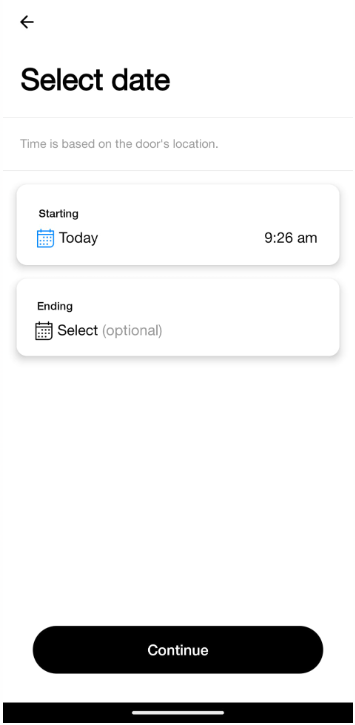
- Choose a start time. You can select start times up to one year in the future.
- If you’d like to set a time to end access, toggle the ‘Set end time’ button.
- Select an end time.
- If you do not select an end time, your guest will have permanent access until you revoke it and perform a door update at your door.
- Select ‘Next.’
- Enter your guest's information (you can only send the Latch App via email).
- If you'd like to invite multiple guests, select 'Add guest'
- If it's a service order and you'd like to add notes related to the visit, toggle on 'Is this a Service Order.'
- Select ‘Next.’
- Review all the information to ensure it is correct.
- Select 'Send'
- If successful, you will receive a ‘Success’ message and your guest will receive an email from no-reply@latch.com with their login details. Guests should set their password for their Latch account and then download the Latch App and sign in. Once signed in, your guest will be able to use the Latch App the same way you do.
- Note: If your guest plans to use the doorcode (provided with their Guest Access and visible to them within the Latch App) a door update will need to be performed before their visit. The door will automatically be updated if your guest performs an unlock using their Latch App but is needed before their door code is synced to the Latch device.
To revoke your guest's Latch App access, follow these steps:
- Select the menu on the top left-hand side of the Latch App.
- Select 'Manage Guests.'
- Choose the guest whose access you'd like to revoke.
- Select 'Revoke Access' at the bottom of the screen and confirm your selection.
- Perform a door update on your door (if the Latch device is a residence door or is not internet connected (if a communal door) the access will not be removed until a door update is performed).
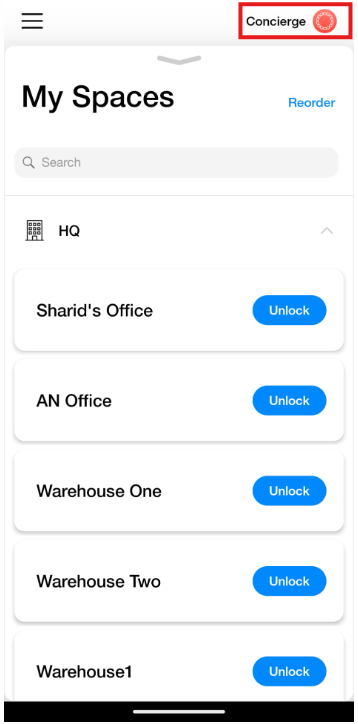
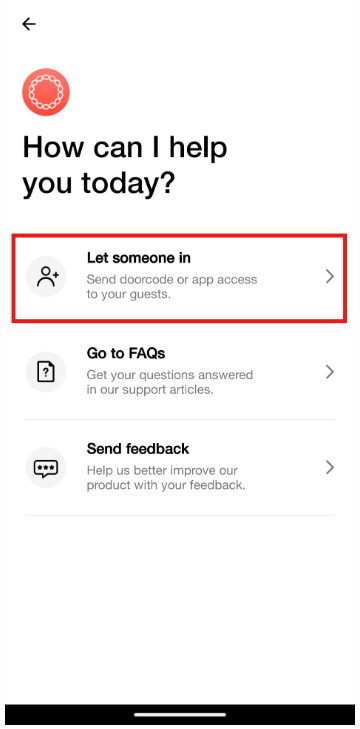
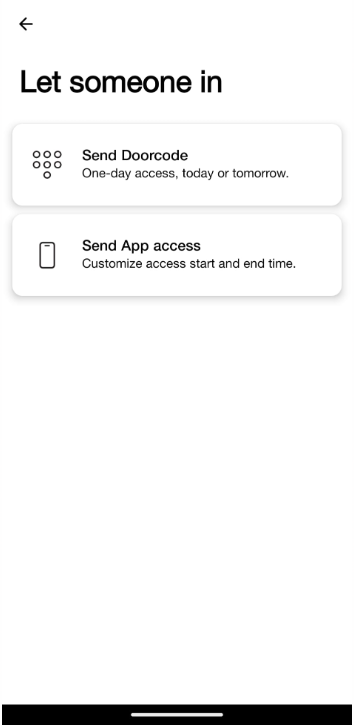
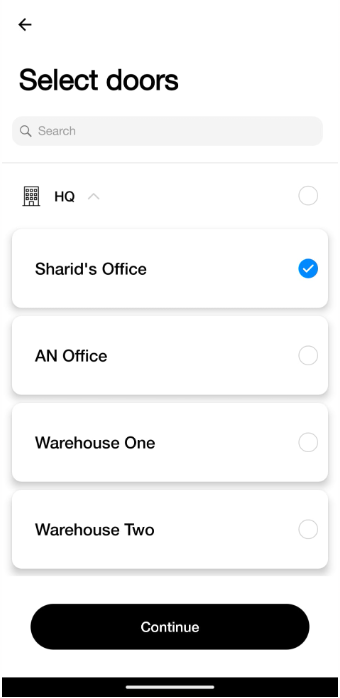
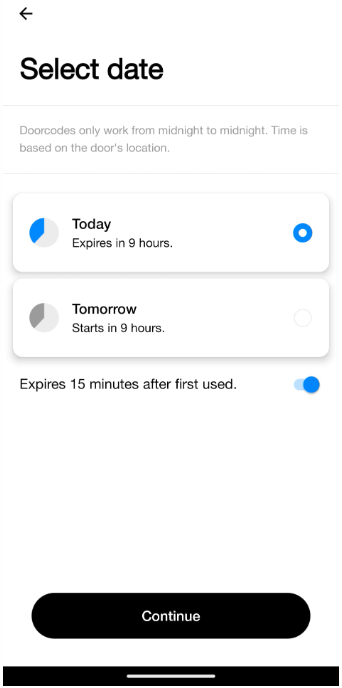
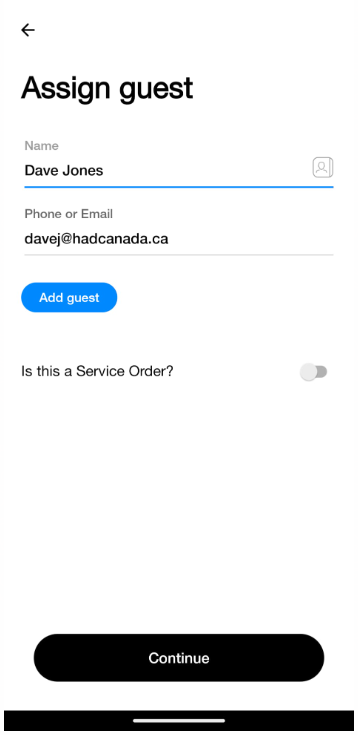
If you want to provide short access to someone you would pick “Send Doorcode”
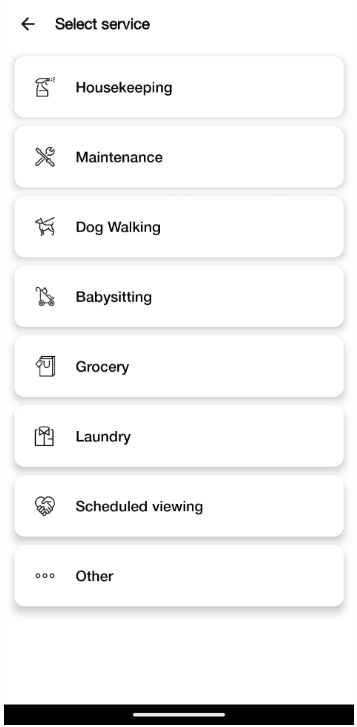
You will follow a very similar procedure and have the option to add a starting and ending time for access. Similarly, to provide a door code you can select “Is this a Service Order” and you will be able to select what kind of service it is and also add notes.
Can I use the Latch up to open my lock from anywhere?
No, you must be within range of the device to unlock it. Latch uses Bluetooth to communicate with your phone. This ensures that you will not accidentally unlock your door while on vacation or by mis-clicking/butt dialing.
What if my Latch Keycard is lost or stolen?
If you've lost your Latch Keycard or you think it might be stolen, we recommend performing the following steps:
- Go to keycard.latch.com
- Select 'Deactivate'
- Enter your Latch email address (that you use to login to the app)
- Check your email and confirm the deactivation
- Perform a door update on your device using your Latch App (or request your property management team perform the door update) as the keycard will still work on any non-internet connected doors until a door update is performed.
If you need a new Keycard, contact your property management and activate it with the following steps.
What if I lock my phone inside my apartment or the battery dies? What if my phone is stolen?
We’ve designed our devices to unlock using various types of credentials: the Latch App, a doorcode, a keycard, or a mechanical key (depending on the device) to assist with these situations. In addition to using one of the other ways to unlock, we recommend taking these steps:
What if I lock my phone inside my apartment or the battery dies?
If you've locked your phone inside your apartment or the battery is dead and you can't remember your doorcode, here are some options:
- Reach out to your Property Management directly for immediate assistance accessing your door. They may be able to help you with gaining access to your unit (if they have a key/keycard or through the daily doorcode option below). For security purposes, Latch cannot provide you with access to your door directly.
- If you have access to another phone (such as a neighbor's), you can log into your Latch account from any iOS or Android device that can download the Latch App. Once you've viewed your codes, you can log out of the Latch App (just make sure the phone doesn't save your password and that you log out completely by going to the menu on the top left-hand side, then choose 'Settings,' then selecting 'Sign Out'). You can perform a password reset via computer, but cannot log in to the Latch App from a computer (Password Change and Password Reset).
- If borrowing someone else's iOS or Android device is not an option, your Property Management (or anyone who has resident access to your unit) can provide you with a daily doorcode via email if you are able to access your email. Like before, please be sure to log out of your e-mail and ensure your password is not saved on another user's phone if you borrow one.
What if my phone is stolen?
In addition to the above, we recommend performing a password reset, using the steps in this article. This will automatically log your account out of any other devices it's logged in. If this is not feasible, you may ask your property management to temporarily remove your building access to protect the security of your apartment (you'll want to perform a door update using the Latch App after revoking your access to remove it from the door).
The latch panel is not lighting up, and my app wont open the door. What do I do?
The first thing you will need to do is change the batteries. 95% of the time this is the main issue if the door is not lighting up. If the door is locked, use the physical key to open it. Once the door is open, access the back panel and change out the batteries. Be sure to follow the diagram on the device to make sure you install the batteries in the correct polarity. Try touching the front face of the panel after this is done and see if it lights up.
Was this article helpful?
That’s Great!
Thank you for your feedback
Sorry! We couldn't be helpful
Thank you for your feedback
Feedback sent
We appreciate your effort and will try to fix the article